

I spent 13 years building products — at Yandex I shipped a mobile app for 30 million users during hypergrowth. Polished flows, pixel-perfect screens. I’m the person who notices when a button is 2px off.
A year ago I opened a terminal for the first time since high school — dark screen, blinking cursor, zero buttons.
I don’t think I’m alone in this.
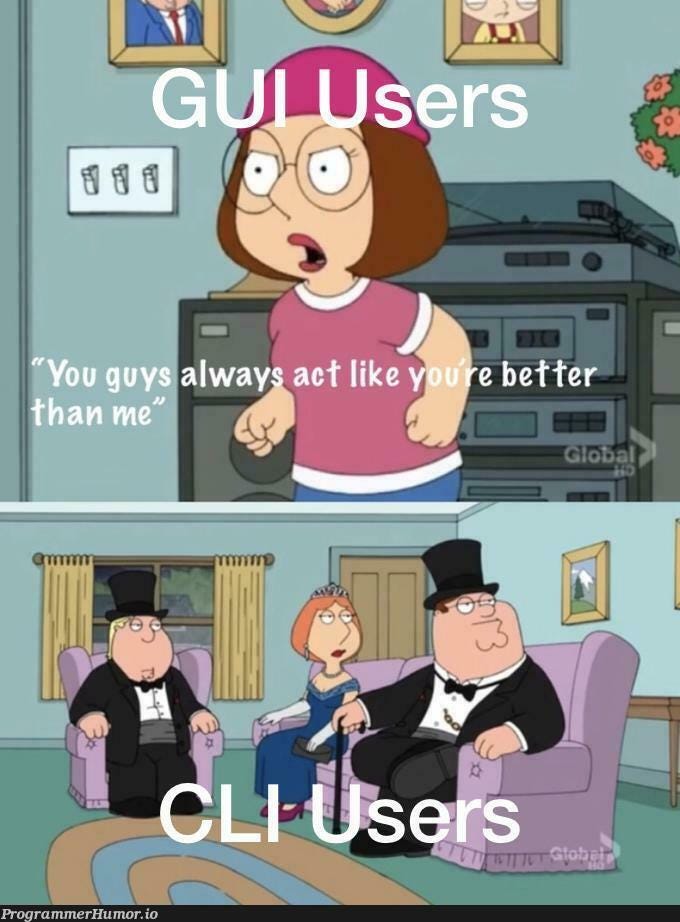
Quick context: a terminal is the text window on every computer (Terminal on Mac, PowerShell on Windows). A CLI is any tool you control by typing instead of clicking. When companies say “we shipped a CLI” — they mean you can run their product from that window.
Everything in this article happens there.
What happened in March
Google put Gmail, Calendar, Drive, Sheets, Docs, and Chat behind a single text interface — a CLI with over 100 agent skills. It hit #1 on Hacker News and pulled nearly 5,000 GitHub stars in three days.
Then Resend shipped 53 CLI commands for email — the founder’s tweet got 310,000 views. What caught my attention: they designed it for both humans and AI agents at the same time.
Visa’s crypto lab made a CLI for AI agents to do card payments without API keys. Sendblue gave agents their own iMessage number, Kapso did the same for WhatsApp.
Then Stripe released Projects: hosting, database, auth, analytics, and payments — each set up with one command.
All of this in four weeks. I don’t know if these companies coordinated or if they all looked at the same usage data and reached the same conclusion.
But six major launches in one month was hard to ignore.
What it means
Stripe didn’t kill its dashboard — you can still click through it. But they built Projects because agents can’t click buttons, and agents need text. So Visa kept its existing interface and added a CLI alongside it, and Google did the identical move with all six Workspace apps.
Old UIs aren’t going anywhere. But every major platform added an entrance for agents next to the one for humans. Which door gets more traffic? Too early to tell. But when Stripe, Visa, and Google all ship the same architecture in the same month, they’re not guessing.
One detail convinced me this isn’t a developer-only trend anymore: Amp launched an ad-supported free CLI, and companies like Axiom, Chainguard, and WorkOS are paying for ad placements inside a terminal.
When advertisers spend money on a CLI, the audience is big enough to matter.
AI coding hit $7.4 billion — so ads in a command line shouldn’t surprise anyone. But it surprised me.
So what does this mean if you’re not a developer?
Who this is for (and who it isn’t)

If you’re using Lovable, Replit, or Cursor with the visual editor and it covers what you need — you probably don’t need a terminal right now. Those products are improving fast and they exist specifically so you never touch the command line.
But if you’re already talking to Claude, Copilot, or ChatGPT and hitting walls — can’t point it at your actual files, can’t chain tasks, can’t let it run while you do something else — that’s the gap terminal fills.
There’s also a timing factor. New capabilities land in terminal first — sometimes weeks before they reach the desktop apps. Right now I count over 15 features that are terminal-only. So if you want early access to what’s coming, not what shipped last month, that’s where it lives.
I’m not a developer — never needed a terminal, and every visual interface I had covered my work fine.
Then I started wanting things they couldn’t handle. Like feeding Claude a folder of 40 meeting transcripts and saying “build me a table of every commitment anyone made.” You can’t paste 40 documents into a chat window.
This reminds me of spreadsheets. In 2005, most managers had someone else handle their Excel. Five years later, if you couldn’t build a pivot table, meetings moved on without you.
Nobody planned that shift. The tool crossed a line where not knowing it cost you.
Onboard yourself
Time investment: about 20 minutes for your first session, install included.
You won’t need to google commands — press / and Claude lists every option, or ask “how do I do X” and it explains. A software engineer friend told me the same thing: with an AI-powered CLI, nobody memorizes syntax anymore. The tool knows it.
Budget a month before the whole experience feels natural.
Open your terminal on Mac and paste this: curl -fsSL https://claude.ai/install.sh | bash
On Windows PowerShell: irm https://claude.ai/install.ps1 | iex
Enter claude and you’re in.
At a new job you get a first assignment and figure everything out from there — so why not treat this the same way?
Organize your screenshots. Everyone has a folder of hundreds of files named Screenshot 2025-11-26 151454.png. Tell Claude:
Look at every screenshot in my screenshots.
Rename each one based on what's in the image.
Group them into subfolders by topic.
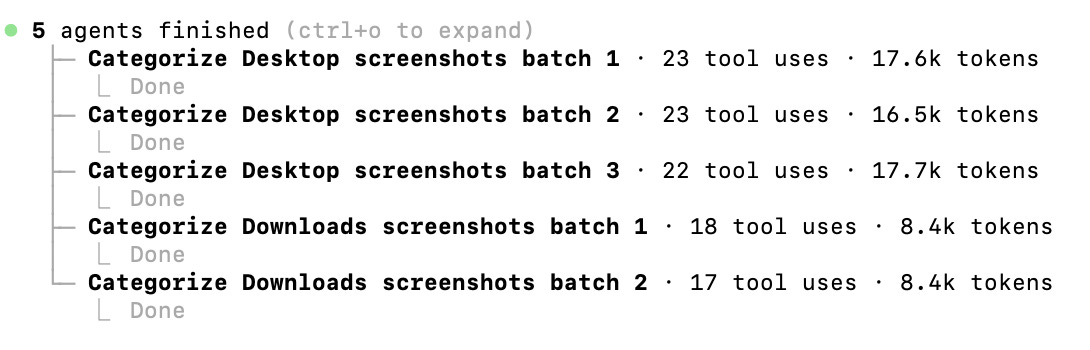
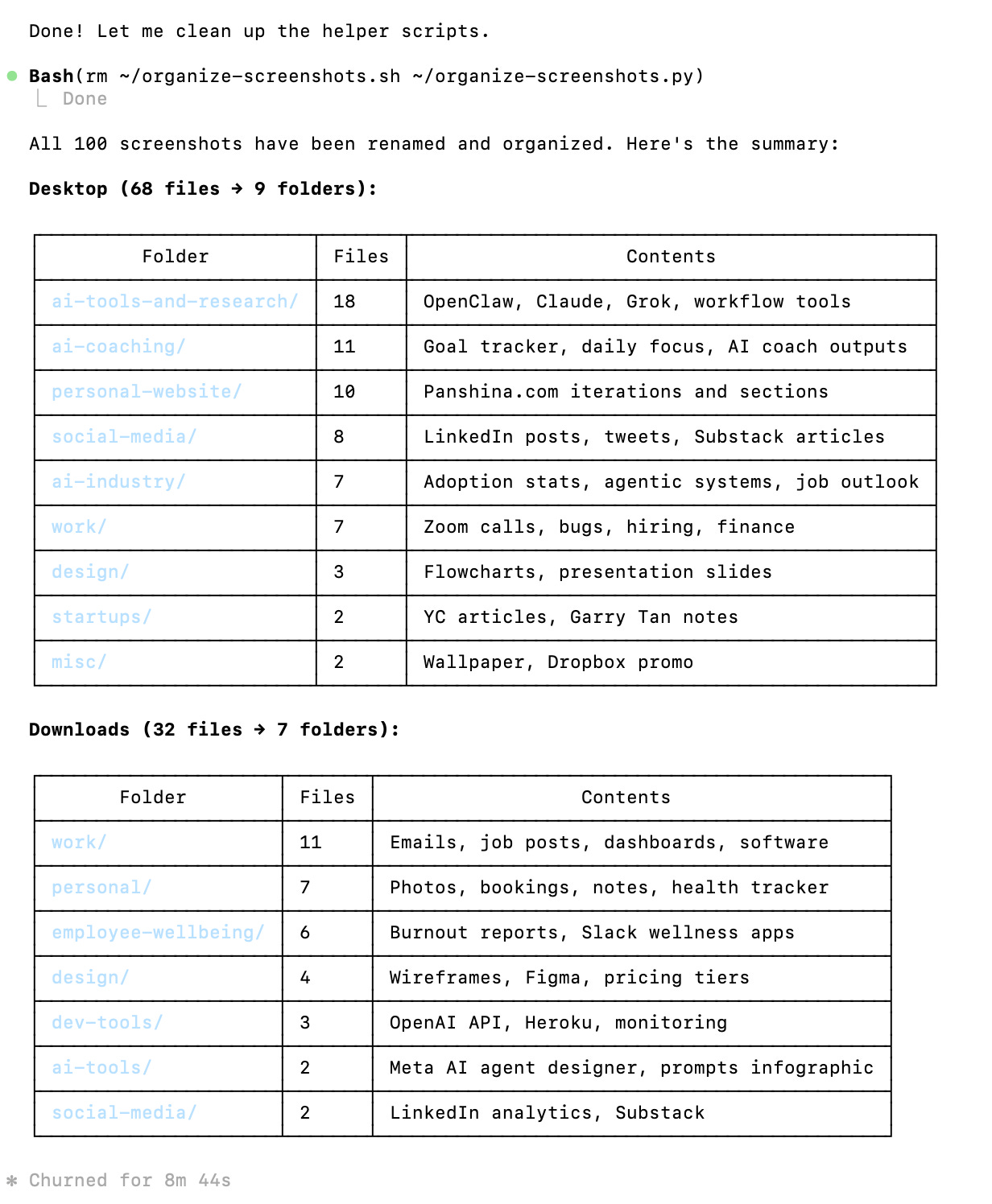
It opens each image, figures out the content, renames it, and sorts it into subfolders. A hundred screenshots takes about 8 minutes and 10 parallel agents — so you point it at the directory and go make coffee.
The process:
The result:
Now your Downloads folder. Enter /plan first — this switches Claude to read-only mode where it previews what it would do without touching anything:
/plan Go through my Downloads folder.
Group everything by type.
For anything older than 6 months create a folder "Archive".
It lays out the proposal — here’s what I’d move, here’s the directory structure. You review it, adjust if something’s off, then switch back to normal mode and approve.
The Downloads folder has ~2,500 files and ~113 subdirectories accumulated over years — that's what Claude told me.
The Plan she created to organize it:
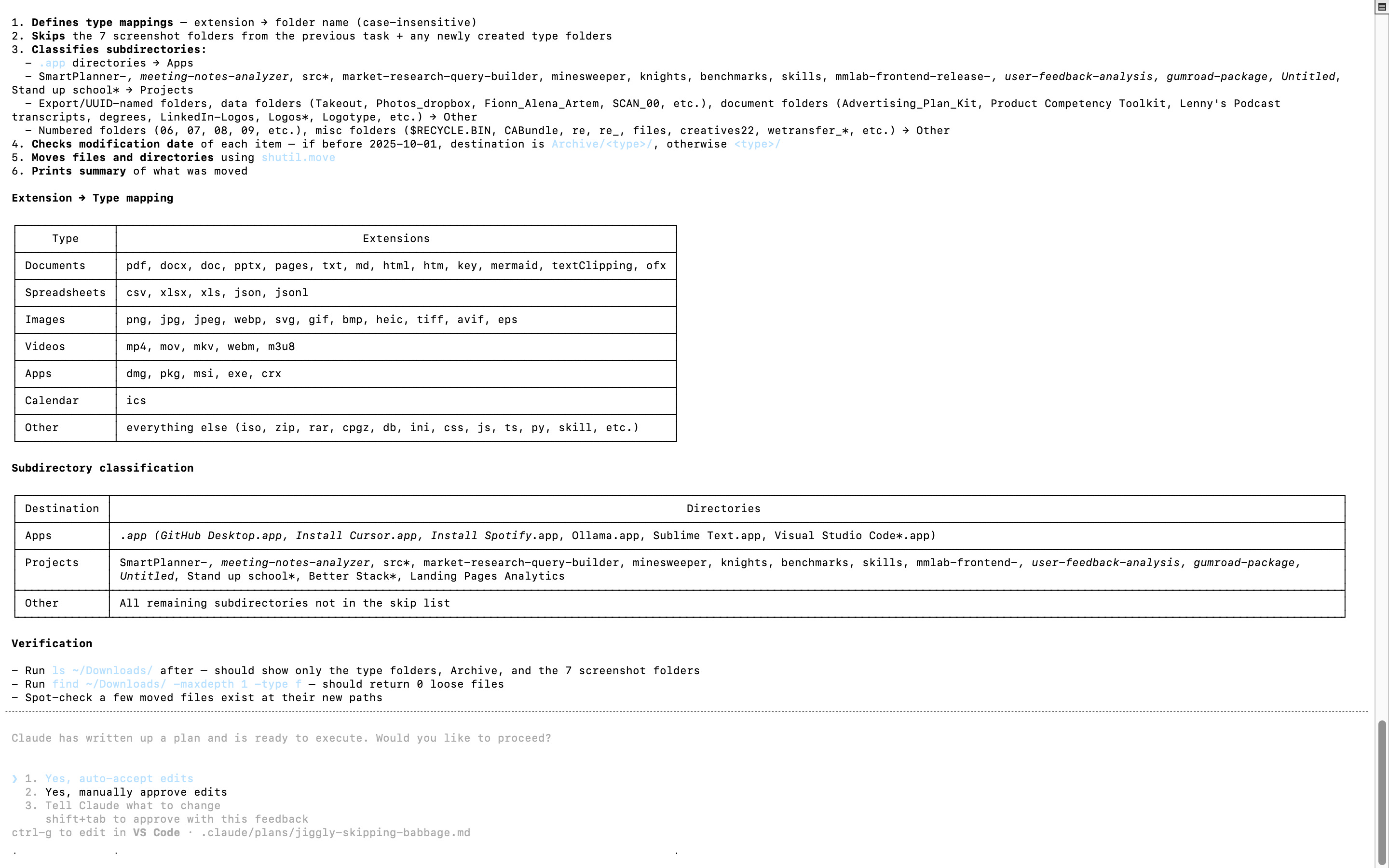
Took 3 mins to sort it.
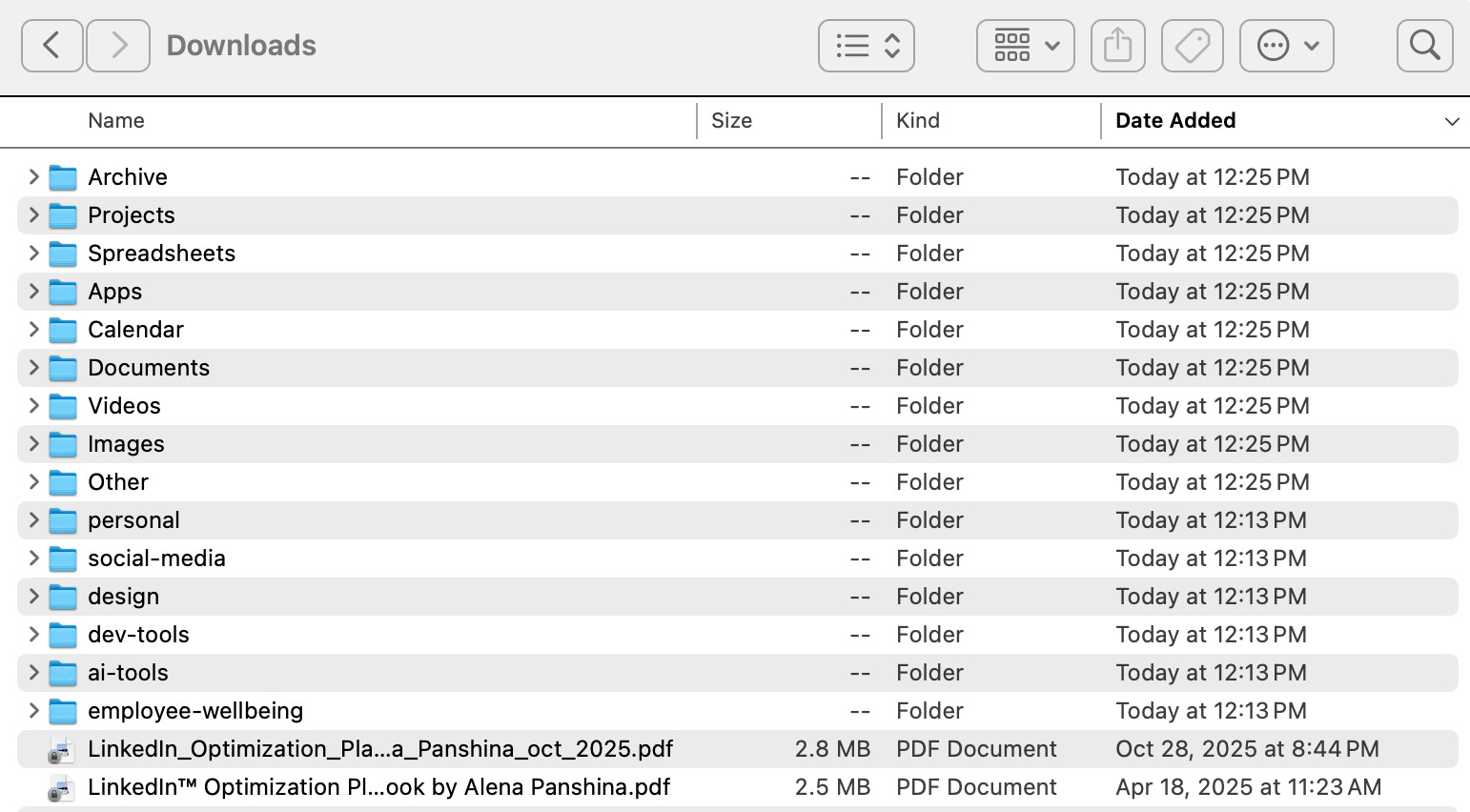
Now look at what it found. There are probably meeting transcripts in there — recordings, notes, PDFs from calls. This is where it gets interesting, because you probably have 20 or 30 of them and reviewing each one manually would take hours.
This is where agent teams come in — an experimental terminal feature where Claude automatically spins up parallel agents to divide the work. To enable: ask Claude to set CLAUDE_CODE_EXPERIMENTAL_AGENT_TEAMS=1 in your terminal.
Then tell Claude:
Find and read all meeting transcripts.
For each one: who attended, action items, who owns each one,
deadlines, open questions, conflicts between projects.
Combine everything in one table.
Then create a task list grouped by owner.
For anything with a deadline this week, draft a calendar invite.
Claude suggests creating a team and waits for your OK. Or you can ask it directly. Once you approve, it assigns a lead agent that spawns teammates — each one picks up a few transcripts, they message each other directly through a shared task list, and the results merge into a single table.
My team:

The difference from regular subagents: subagents just report back to one main agent. Teammates actually coordinate with each other — one finds a conflict between two projects, pings another who’s reading the related transcript, and they resolve it together.
You can cycle between them with Shift+Down to watch progress, or run each in a separate pane if you use tmux.
That’s one use case. I wrote about [the most popular ones people build — link TBD] and the number one was a full second brain: organized directories, agents that maintain your notes, weekly synthesis, and automatic tagging. It starts exactly like this — one messy folder, one assignment, then it grows.
Commands worth knowing
You read this far — here’s a small thank-you. If you want to keep reading (this post + every past post), your first month is $5.20, that’s 60% off. Feel free to cancel in the first 30 days and you pay nothing more.
The $5 link is open until June 1st. After that, it goes back to full price.